¶ 🧭 Knowledge Base User Guide
Welcome to this knowledge base system! This page will help you quickly understand how to use Wiki to publish and manage document content.
¶ ✍️ How to Publish a New Page
-
Click "+ New Page"
- Click the
+icon in the navigation bar above to pop up a new page dialog box. 
- Click the
-
Select storage location
- Select the directory to which the page belongs (if there is no directory you want to select, you can create a new blank page as the directory).
- Fill in the page path (the path needs to be unique)
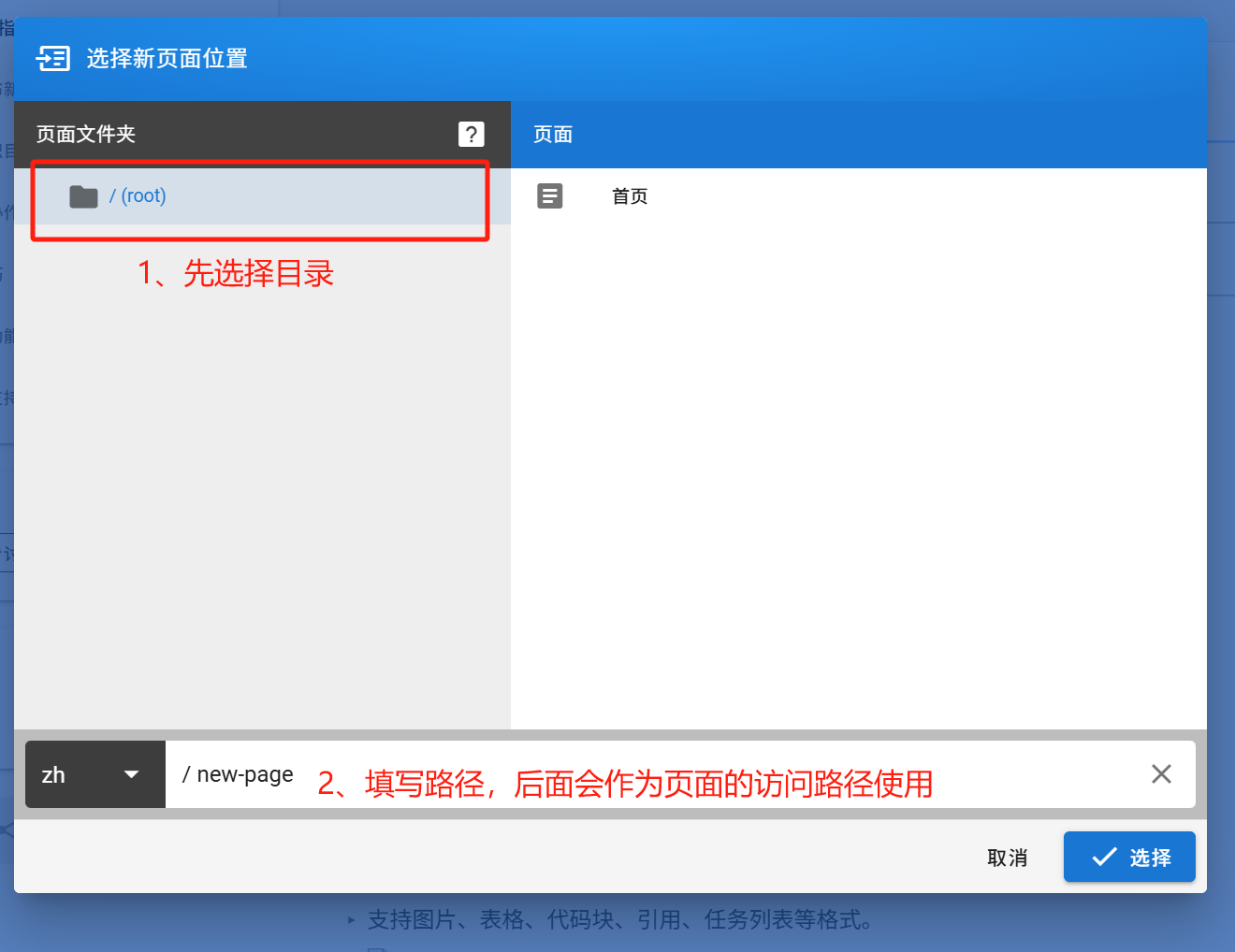
-
Select Editor
- Use Markdown or Vistal Editor to author content.
- Supports formats such as pictures, tables, code blocks, quotes, task lists, etc.
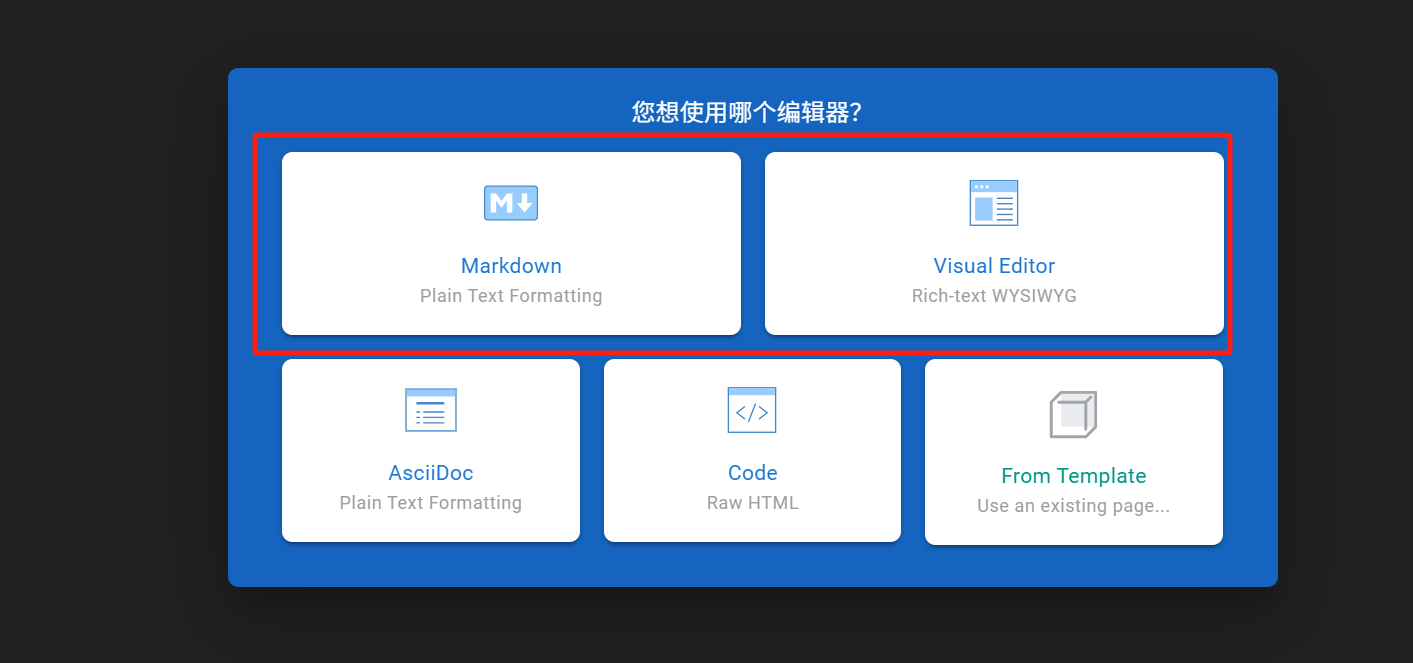
-
Fill in the page properties
- Enter the title and path information.
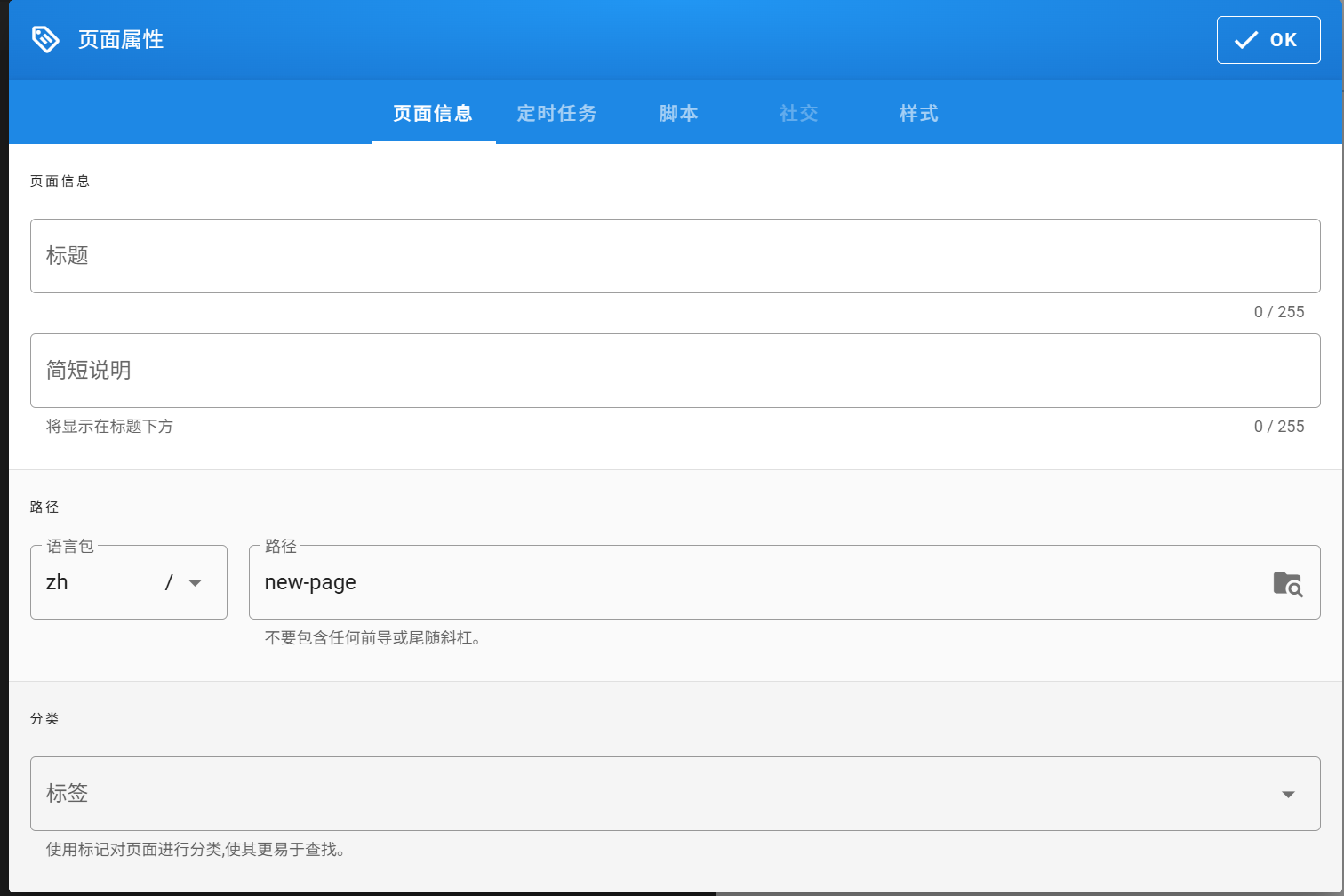
-
Save & Publish
- Click the "Save" or "Publish" button to submit your content.
¶ 🔐 Permissions and collaboration
- Pages can set access permissions (public, private, visible to teams, etc.)
- Supports multi-person collaborative editing and version history viewing.
- The page can be restored to any historical version.
¶ 💡 Practical tips
- Use
/page-pathto quickly redirect. - Use tags to categorize and manage pages.
- Supports embedding videos, PDFs, external web pages, etc.
- Comments can be enabled to enhance communication.
¶ 📞 Contact & Support
If you have any questions, please contact system administrator for help. Email: cloud@zenbess.com